

Difficulty
Easy
Breathe Better. Live Smarter.®
Get your Terrestream online in about 10 minutes.
Follow these numbered steps to create an account if you want cloud features, connect the setup Wi-Fi, configure the device, claim it, and place it in the room.
7 guided steps
10-15 minutes
On-device screen cues
Time
10-15 min
Steps
7 guided steps
Best with
Phone + 2.4 GHz Wi-Fi
In the box
Sensor and USB-C power adapter.
Account
Optional for dashboard and mobile app access.
Network
Phone nearby and 2.4 GHz Wi-Fi password.
Step 1
2 minutesCreate an account and power on
Do this
Create a Terrestream account if you want the web dashboard or mobile app. Then connect the supplied USB-C cable to the sensor and plug the supplied charger into a wall outlet.
You should see
The screen lights up and the device starts its first setup flow.
If not
You can skip the account if you only want local, standalone use. If the device does not power on, try another outlet before a computer USB port.
Step 2
1 minuteChoose language and accept terms
Do this
Tap EN or Français on the screen. Review the Terms of Service and Privacy Policy, then tap Accept & Continue.
You should see
The device moves past the welcome screen and is ready to connect.
If not
Tap once with a bare finger. The screen is capacitive, like a phone.
Step 3
3 minutesJoin the Terrestream setup Wi-Fi
Do this
On iPhone, open Settings > Wi-Fi and join Terrestream-XXXX. On Android, open Settings > Network & internet > Internet or Wi-Fi and join Terrestream-XXXX. Stay connected if your phone warns that the network has no internet.
You should see
The captive portal usually opens automatically so you can continue device setup.
If not
If the portal does not open, open a browser on your phone and go to 192.168.4.1. The temporary setup network times out after about 10 minutes of idle time.
Step 4
3 minutesSet up the device
Do this
In the captive portal, follow the device setup form. Use this step to name the device, choose room or display settings, connect it to your 2.4 GHz home Wi-Fi, and optionally configure Home Assistant, MQTT, or local API access.
You should see
The portal saves your choices and the device starts connecting to your home network.
If not
If your home Wi-Fi fails, confirm the network is 2.4 GHz, recheck the password, then reconnect to Terrestream-XXXX and open 192.168.4.1 again.
Step 5
2 minutesClaim it to your account
Do this
Enter the code shown on the device into the claim prompt in your Terrestream account. For a new account, this prompt appears after sign-in. To add another device later, open your dashboard, go to Devices, choose Add device, and enter the code there.
You should see
The dashboard confirms the device is attached to your account.
If not
If the code expires or is rejected, restart the claim step on the device and enter the new code.
Step 6
2 minutesComplete setup and place it
Do this
Click the Complete Setup button in the setup portal, then put the sensor where room air can move around it.
You should see
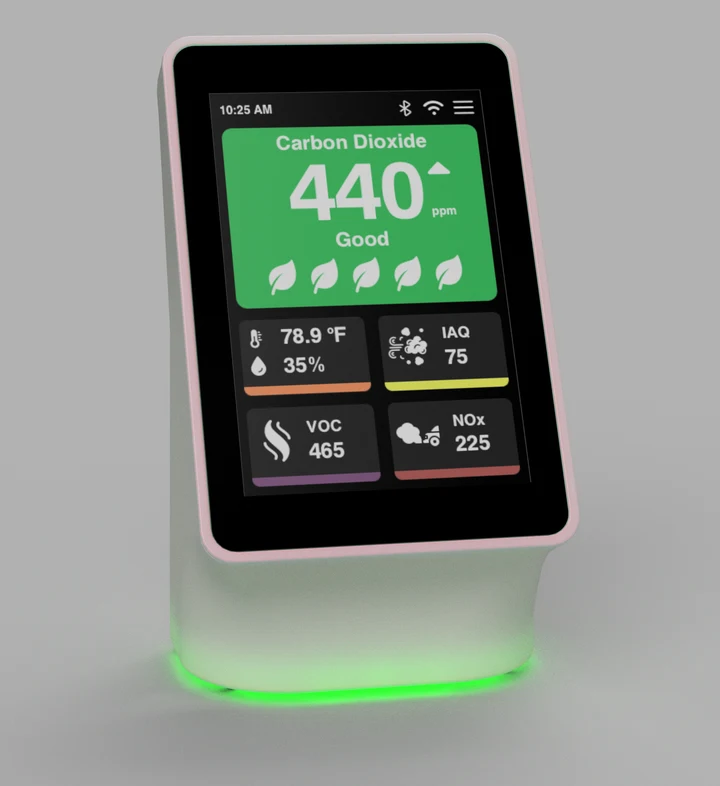
The device exits setup and begins showing room readings.
If not
Use a table, shelf, or counter away from vents, open windows, humidifiers, stoves, showers, and direct sunlight.
Step 7
10 minutesLet readings settle
Do this
Leave the device powered on and connected.
You should see
The screen keeps updating. CO2 should trend back into green after fresh-air exposure, while other readings settle into green or yellow ranges.
If not
If readings look surprising, give the device about 10 minutes of fresh-air exposure while powered on so the internal sensors can self-calibrate.
Fast fixes
If you get stuck
Try the matching fix below. These are the common setup issues.
No power
Check the outlet, cable, and adapter. Try a wall outlet before a computer USB port.
Portal did not open
Stay on Terrestream-XXXX, then open 192.168.4.1 manually in your phone browser.
Wi-Fi failed
Use a 2.4 GHz network, confirm the password, and keep the sensor near the router during setup.
Claim prompt missing
Open the dashboard, go to Devices, choose Add device, and enter the code shown on the sensor.
Home Assistant later
You can skip Home Assistant and MQTT during first setup and configure local integrations later.
Readings look wrong
Give the powered-on device about 10 minutes of fresh-air exposure so sensors can self-calibrate.
After setup